Prominsk
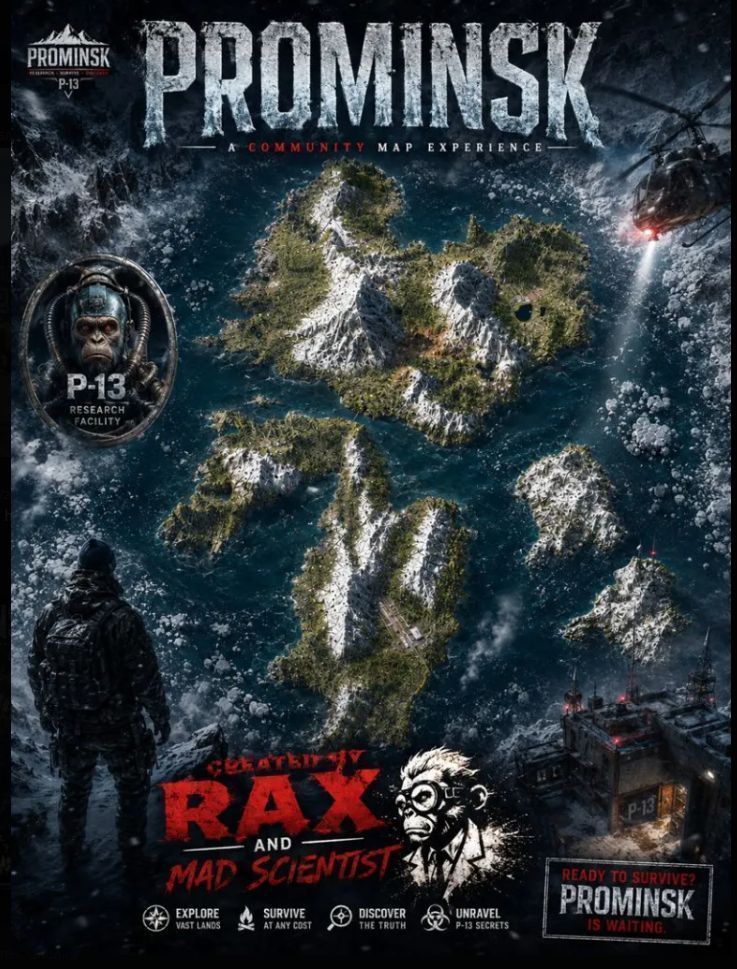
PROMINSK Created by RAX This Steam Workshop description is updated for Steam compatibility. Overview: - Custom mod content created by Rax. - Designed for Steam Workshop distribution. - Includes assets and enhancements created specifically for this mod. Permissions: - Copyright 2026 by Rax. - All rights reserved. - Do not unpack, repack, or redistribute without explicit permission. - Post and share this mod only… (more)
PROMINSK Created by RAX This Steam Workshop description is updated for Steam compatibility. Overview: - Custom mod content created by Rax. - Designed for Steam Workshop distribution. - Includes assets and enhancements created specifically for this mod. Permissions: - Copyright 2026 by Rax. - All rights reserved. - Do not unpack, repack, or redistribute without explicit permission. - Post and share this mod only through the authorized Steam account. Credits: - Rax - The Mad Scientist - PackManZ More Info here https://discord.gg/vrFzxqk2e #prominsk-feedback Get your DayZ server with the Prominsk map, ready to install in just 1 click at GTXGaming.co.uk! //////////////////////////////////////////////////////////////////////////////////////////////////////////////////////////// PROMINSK-UPDATED V5 — Server Installation Instructions All Survivors — Please Read Follow the instructions below to install the Prominsk Map and RAX Content Pack correctly on your DayZ server. 1. Download Prominsk Download the Prominsk Map from the Steam Workshop. Download all additional/required mods listed for Prominsk. Make sure every required mod is installed and added to your server’s mod list. 2. Install the RAX Content Pack Download the RAX Content Pack from the Steam Workshop. Add the RAX Content Pack to your server. Make sure the required dependencies for the content pack are also installed. 3. Missions File The required missions file is included in the Prominsk folder. Locate the missions file inside the Prominsk folder. Copy it into your server’s mission folder. Adapt the file to match your own server configuration. Check that all paths and settings are correct before starting the server. 4. Profile Folder The Profile folder is also required. Add the supplied Profile folder to your server. The Profile folder contains the spawn point settings for the custom zombies. Make sure the Profile folder is installed in the correct location on your server. Do not remove or overwrite the custom zombie spawn settings. 5. custom.json — Bunker Configuration The custom.json file needs to be added to your server for the bunker configuration. Locate the custom.json file. Add it to the correct location on your server. Make sure the bunker spawn point is set correctly. 6. Restart Your Server Once everything has been installed: Save all changes. Check your server configuration. Restart the server completely. Allow the server to finish loading all mods and files. Join the server and test the Prominsk map. Check the bunker, spawn points and RAX content to make sure everything is working correctly. Check that the custom zombies are spawning correctly. Final Check If everything has been installed correctly, your server should now be running Prominsk with the RAX Content Pack, including the required missions, Profile folder, custom zombie spawn points, bunker configuration and spawn setup. If you experience any problems, check your server logs first and make sure every required mod is installed and loaded correctly. Thank you for playing Prominsk — enjoy the map and stay safe, survivors! MMW / RAX
Not analyzed yet
modperf has not read this mod's scripts, so there is no report and it is left out of any stack it appears in. 1 live server in the crawl publishes it.
The worker downloads the mod from the Workshop and reads its Enforce Script — nothing is executed. Usually a few minutes. This page then shows the report.